Model Order – Plan View List

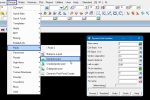
[vc_row][vc_column][vc_column_text] This option is used to move the Model Order around on a view in the project. Continue down the page to see the Model Order options.[/vc_column_text][/vc_column][/vc_row][vc_row][vc_column][vc_separator border_width=”5″][/vc_column][/vc_row][vc_row][vc_column][vc_column_text]To view the Model Order option, Use: Plan View Menu => Models => Model Order [/vc_column_text][/vc_column][/vc_row][vc_row][vc_column][vc_single_image image=”7727″ img_size=”full”][/vc_column][/vc_row][vc_row][vc_column][vc_column_text] Definition The Model Order panel is found on all the […]
Read More →

Project Models Utilities – Project Models

[vc_row][vc_column][vc_column_text] This option will look at the ‘Project Models’ side of the Project Models Utilities panel. This panel can save, remove, clean and delete model/s in the project. The models can also be added or removed from a selected view in the project. Continue down the page to see the Project Models Utilities Panel – […]

Read More →

Project Models Utilities – Removed Model/s

[vc_row][vc_column][vc_column_text] This option will look at the ‘Disk Models’ side of the Project Models Utilities panel. This panel can add/reinstate model/s back to the project, or delete removed model/s from the project. Continue down the page to see the Project Models Utilities Panel – Removed Model/s options.[/vc_column_text][/vc_column][/vc_row][vc_row][vc_column][vc_separator border_width=”5″][/vc_column][/vc_row][vc_row][vc_column][vc_column_text]To view the Project Models Utilities Panel, Use: […]

Read More →

Clean Model

[vc_row][vc_column][vc_column_text] This option is used to delete all the strings in a model, but the model is not deleted and remains in the project. Continue down the page to see the Clean Model Panel options.[/vc_column_text][/vc_column][/vc_row][vc_row][vc_column][vc_separator border_width=”5″][/vc_column][/vc_row][vc_row][vc_column][vc_column_text]To view the Clean Model Panel, Use: Models => Clean [/vc_column_text][/vc_column][/vc_row][vc_row][vc_column][vc_single_image image=”4884″ img_size=”full”][/vc_column][/vc_row][vc_row][vc_column][vc_column_text] “Clean a Model” Definition The “Clean a […]

Read More →

Global Model Rename

[vc_row][vc_column][vc_column_text] This option is used to change the names of multiple models in the project. Continue down the page to see the Global Model Rename Panel options.[/vc_column_text][/vc_column][/vc_row][vc_row][vc_column][vc_separator border_width=”5″][/vc_column][/vc_row][vc_row][vc_column][vc_column_text]To view the Global Model Rename Panel, Use: Models => Global Model Rename [/vc_column_text][/vc_column][/vc_row][vc_row][vc_column][vc_single_image image=”4910″ img_size=”full”][/vc_column][/vc_row][vc_row][vc_column][vc_column_text] Match Sub Strings Example Tick the <Match Sub Strings> option to match […]

Read More →

String Information Table

[vc_row][vc_column][vc_column_text] This option is used to display all the strings in a selected model in the project. The information is displayed in a table format and can be sorted by columns. Continue down the page to see the String Information Table Panel options.[/vc_column_text][/vc_column][/vc_row][vc_row][vc_column][vc_separator border_width=”5″][/vc_column][/vc_row][vc_row][vc_column][vc_column_text]To view the String Information Table Panel, Use: Models => String Information […]

Read More →

Model Information Panel

[vc_row][vc_column][vc_column_text] This option is used to view the information of a selected model in the project. Continue down the page to see the Model Information Panel options.[/vc_column_text][/vc_column][/vc_row][vc_row][vc_column][vc_separator border_width=”5″][/vc_column][/vc_row][vc_row][vc_column][vc_column_text]To view the Model Info Panel, Use: Models => Model Info [/vc_column_text][/vc_column][/vc_row][vc_row][vc_column][vc_single_image image=”4774″ img_size=”full”][/vc_column][/vc_row][vc_row][vc_column][vc_column_text]The Model Information panel will display the following information for a selected model in the […]

Read More →

Delete All Models

[vc_row][vc_column][vc_column_text] This option is used to delete all the models in the project. Continue down the page to see the Delete All Models options.[/vc_column_text][/vc_column][/vc_row][vc_row][vc_column][vc_separator border_width=”5″][/vc_column][/vc_row][vc_row][vc_column][vc_column_text]To view the Delete All Models Panel, Use: Models => Delete => Delete All Models[/vc_column_text][/vc_column][/vc_row][vc_row][vc_column][vc_single_image image=”4757″ img_size=”full”][/vc_column][/vc_row][vc_row][vc_column][vc_column_text]The list of all the models in the project are listed under the <-> button […]

Read More →

Delete a Model

[vc_row][vc_column][vc_column_text] This option is used to delete a single model in the project. Continue down the page to see the Delete a Model options.[/vc_column_text][/vc_column][/vc_row][vc_row][vc_column][vc_separator border_width=”5″][/vc_column][/vc_row][vc_row][vc_column][vc_column_text]To view the Delete a Model Panel, Use: Models => Delete => Delete a Model[/vc_column_text][/vc_column][/vc_row][vc_row][vc_column][vc_single_image image=”4753″ img_size=”full”][/vc_column][/vc_row][vc_row][vc_column][vc_column_text]Pick the <Model> button on the panel. Select the model to be deleted from the […]

Read More →